
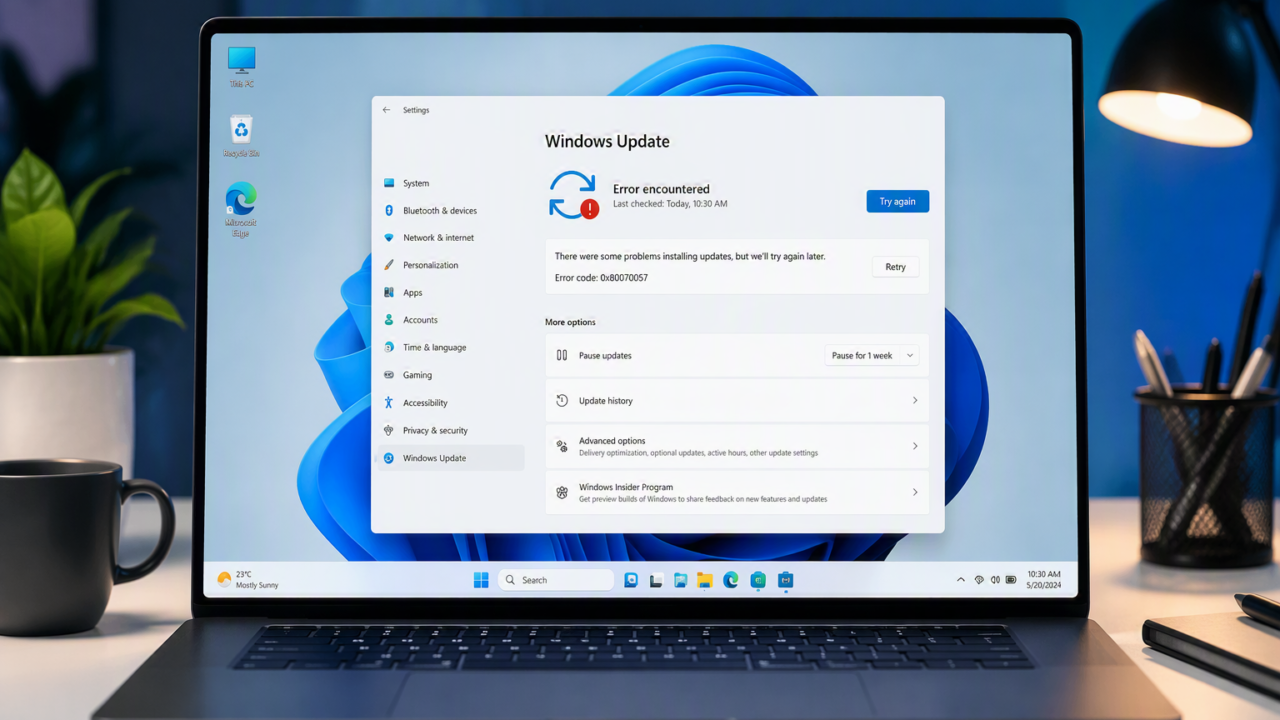
Windows Update is one of the most important components of Microsoft Windows. It delivers security patches, bug fixes, device driver updates, and new features that help keep your system secure and stable.
However, many Windows users eventually encounter Windows Update Error 0x80070057, a frustrating update issue that prevents updates from installing correctly. Whether you’re running Windows 10 or Windows 11, this error can interrupt critical security updates and leave your system vulnerable to threats.
The good news is that in most cases, this error is fixable without reinstalling Windows. By following a structured troubleshooting process, you can often identify the root cause and restore Windows Update functionality.
In this guide, you’ll learn:
- What Windows Update Error 0x80070057 means
- Common causes of the error
- Step-by-step methods to fix it
- Additional troubleshooting techniques
- FAQs and best practices for preventing future update issues
Let’s get started.
What is Windows Update Error 0x80070057?
Windows Update Error 0x80070057 is a Microsoft update error that generally indicates Windows has encountered an invalid parameter, corrupted update component, damaged system file, or configuration issue during the update process.
Users may see messages such as:
Plain Text
There were some problems installing updates.
Error code: 0x80070057
Show more lines
or
Plain Text
Windows could not search for new updates.
Error(s) found: Code 0x80070057
The error can occur during:
- Installing cumulative updates
- Feature updates
- Security updates
- Windows upgrades
- Microsoft Store updates
- Backup and restore operations
Although the error code appears technical, it usually points to problems within Windows Update components, system files, or update cache folders.
What Causes Windows Update Error 0x80070057?
Several factors can trigger this Windows Update Error.
1. Corrupted Windows Update Cache
Windows stores downloaded update files in local cache folders.
If these files become corrupted, update installations may fail.
2. Damaged System Files
Missing or corrupted Windows system files can interfere with update operations.
3. Insufficient Disk Space
Large updates require adequate free storage.
If the drive is nearly full, updates may stop unexpectedly.
4. Misconfigured Windows Services
Essential services such as:
- Windows Update
- BITS (Background Intelligent Transfer Service)
- Cryptographic Services
must run correctly for updates to install.
5. Registry Inconsistencies
Incorrect registry settings related to updates can trigger invalid parameter errors.
6. Antivirus or Security Software Interference
Third-party security software can sometimes block update files or services.
7. Corrupted SoftwareDistribution Folder
This folder stores downloaded update packages.
If corrupted, updates typically fail.
8. Damaged Component Store
Windows uses a component store (WinSxS) to manage updates.
Damage within this store commonly causes Microsoft Update errors.
Prerequisites
Before beginning the repair process, prepare the following:
Required Checklist
✅ Administrator account access
✅ Stable internet connection
✅ At least 20 GB free disk space
✅ Important files backed up
✅ Temporary disabling of third-party antivirus software (if applicable)
✅ Restart the computer before troubleshooting
Recommended Backup
Although the procedures are generally safe, creating a system restore point is recommended.
To create a restore point:
- Press Windows + R
- Type:
Plain Text
sysdm.cpl
- Open System Protection
- Click Create
- Name the restore point
- Save it
Step-by-Step Instructions
Step 1: Restart Your Computer
A simple reboot can resolve temporary update glitches.
How to Perform
- Click Start
- Select Power
- Click Restart
Screenshot Placeholder
[Screenshot: Windows Restart Menu]
Expected Result
Windows restarts normally and pending update locks are cleared.
Step 2: Verify Available Disk Space
Windows updates require sufficient free storage.
How to Check
- Open File Explorer
- Select This PC
- Inspect the C: drive free space
Recommended Free Space
- Windows 10: Minimum 10–20 GB
- Windows 11: Minimum 20 GB
Cleanup Suggestions
- Empty Recycle Bin
- Remove temporary files
- Run Storage Sense
Screenshot Placeholder
[Screenshot: This PC Storage Information]
Expected Result
Adequate free space becomes available for update installation.
Step 3: Run the Windows Update Troubleshooter
Microsoft includes an automated repair tool.
Instructions
- Open Settings
- Navigate to:
Plain Text
System > Troubleshoot > Other Troubleshooters
Show more lines
- Locate Windows Update
- Click Run
Screenshot Placeholder
[Screenshot: Windows Update Troubleshooter]
Expected Result
Windows automatically detects and repairs update-related issues.
Step 4: Run System File Checker (SFC)
SFC scans and repairs damaged system files.
Instructions
Open Command Prompt as Administrator and run:
BAT
sfc /scannow
What It Does
The tool verifies protected Windows files and replaces corrupted copies.
Screenshot Placeholder
[Screenshot: SFC Scan Running]
Expected Result
You should see:
Plain Text
Windows Resource Protection found corrupt files and successfully repaired them.
Show more lines
If no corruption is found:
Plain Text
Windows Resource Protection did not find any integrity violations.
Step 5: Repair Windows Image Using DISM
If SFC doesn’t resolve the problem, use DISM.
Open Elevated Command Prompt
Run the following commands one at a time:
BAT
DISM /Online /Cleanup-Image /CheckHealth
Show more lines
BAT
DISM /Online /Cleanup-Image /ScanHealth
«
BAT
DISM /Online /Cleanup-Image /RestoreHealth
Explanation
DISM repairs the Windows component store used by Windows Update.
Screenshot Placeholder
[Screenshot: DISM RestoreHealth Command]
Expected Result
The scan completes with:
Plain Text
The restore operation completed successfully.
Restart your PC afterward.
Step 6: Reset Windows Update Components
One of the most effective solutions for Windows Update Error 0x80070057.
Stop Update Services
Open Command Prompt as Administrator.
Run:
BAT
net stop wuauserv
BAT
net stop bits
BAT
net stop cryptsvc
Rename Update Folders
BAT
ren C:\Windows\SoftwareDistribution SoftwareDistribution.old
BAT
ren C:\Windows\System32\catroot2 catroot2.old
Restart Services
BAT
net start wuauserv
BAT
net start bits
BAT
net start cryptsvc
Screenshot Placeholder
[Screenshot: Reset Windows Update Components]
Expected Result
Windows creates fresh update folders and downloads clean update files.
Step 7: Check Windows Update Services
Verify critical services are running.
Open Services
Press:
Plain Text
Windows + R
Type:
Plain Text
services.msc
Verify these services:
- Windows Update
- Background Intelligent Transfer Service (BITS)
- Cryptographic Services
Recommended Startup Type
| Service | Startup Type |
|---|---|
| Windows Update | Automatic |
| BITS | Automatic (Delayed Start) |
| Cryptographic Services | Automatic |
Screenshot Placeholder
[Screenshot: Services Console]
Expected Result
All update-related services are running correctly.
Step 8: Perform a Clean Boot
Third-party applications may interfere with updates.
Steps
- Press Windows + R
- Type:
Plain Text
msconfig
Show more lines
- Go to Services
- Check:
Plain Text
Hide all Microsoft services
- Click:
Plain Text
Disable All
- Open Task Manager
- Disable startup applications
- Restart the computer
Screenshot Placeholder
[Screenshot: Clean Boot Configuration]
Expected Result
Windows starts with minimal services, reducing software conflicts.
Step 9: Install Updates Manually
If automatic updates fail, manually install the update.
How
- Open:
Plain Text
Settings > Windows Update
- Note the KB number
Example:
Plain Text
KB5030219
- Visit Microsoft Update Catalog:
Plain Text
https://www.catalog.update.microsoft.com
- Search for the KB number
- Download the correct version
- Install it manually
Screenshot Placeholder
[Screenshot: Microsoft Update Catalog Download]
Expected Result
The update installs successfully.
Step 10: Perform an In-Place Repair Upgrade
Use this option if all previous fixes fail.
Benefits
- Keeps applications
- Preserves files
- Repairs Windows installation
Process
- Download Windows ISO from Microsoft
- Mount ISO
- Run:
Plain Text
setup.exe
- Select:
Plain Text
Keep personal files and apps
- Follow installation prompts
Screenshot Placeholder
[Screenshot: Windows In-Place Upgrade Wizard]
Expected Result
Windows reinstalls core system components without data loss.
Common Problems
DISM Gets Stuck
Possible causes:
- Slow internet
- HDD performance issues
- Corrupted components
Wait up to 30 minutes before cancelling.
Access Denied Errors
Run Command Prompt as Administrator.
Services Refuse to Start
Check:
- Event Viewer logs
- Service dependencies
- Security software
Error Returns After Reboot
Possible indicators:
- Malware infection
- Registry corruption
- Hardware issues
Update Downloads but Fails to Install
Often caused by:
- Damaged component store
- Driver conflicts
- Incomplete previous updates
Troubleshooting Tips
Check Date and Time Settings
Incorrect system time can cause update failures.
Verify:
Plain Text
Settings > Time & Language
«
Show more lines
Enable automatic synchronization.
Disconnect Unnecessary Peripherals
Temporarily remove:
- USB drives
- Printers
- External storage devices
Disable Third-Party Antivirus
Some security software may block:
- Update downloads
- Service execution
- System file modifications
Scan for Malware
Use:
- Microsoft Defender
- Microsoft Safety Scanner
Check Hard Drive Health
Run:
BAT
chkdsk C: /f /r
Review Windows Update Logs
Advanced IT administrators should inspect:
Plain Text
Event Viewer
Path:
Plain Text
Windows Logs > Setup
and
Plain Text
Applications and Services Logs > Microsoft > Windows > WindowsUpdateClient
Keep Device Drivers Updated
Outdated drivers occasionally cause update installation failures.
Frequently Asked Questions
1. What does Windows Update Error 0x80070057 mean?
It usually indicates Windows encountered invalid parameters, corrupted update files, damaged system components, or update configuration problems.
2. Is Error 0x80070057 dangerous?
The error itself is not dangerous, but it can prevent critical security updates from being installed, potentially exposing your system to vulnerabilities.
3. Does Windows 11 get Error 0x80070057?
Yes. The issue affects both Windows 10 and Windows 11 systems.
4. Will resetting Windows Update delete my files?
No. Resetting update components only removes update cache files and does not affect personal data.
5. Can antivirus software cause this error?
Yes. Certain third-party security products may interfere with downloads or installation processes.
6. Is SFC enough to fix the problem?
Sometimes. If the issue stems from corrupted system files, SFC may resolve it. More severe corruption often requires DISM.
7. Should I delete the SoftwareDistribution folder?
Yes. Renaming or recreating it is a common Microsoft-recommended troubleshooting approach and is generally safe.
8. What if Windows Update Troubleshooter doesn’t work?
Proceed with advanced repairs such as:
- SFC
- DISM
- Resetting Update Components
- In-Place Repair Upgrade
9. Can a failing hard drive cause update errors?
Yes. Bad sectors and storage failures can corrupt update files and system components.
10. When should I reinstall Windows completely?
Consider a clean installation if:
- Multiple system errors exist
- Repair upgrades fail
- Severe corruption persists
Always back up important data first.
Conclusion
Windows Update Error 0x80070057 is a common but fixable Windows update issue. In most cases, the root cause is corrupted update components, damaged system files, insufficient storage, or service-related problems.
Start with simple solutions such as restarting your PC and running the built-in troubleshooter. If the issue persists, perform SFC and DISM scans, reset Windows Update components, and verify essential services. For stubborn cases, an in-place repair upgrade can often restore update functionality without affecting your personal files.
By following the methods outlined in this guide, both home users and IT professionals can reliably diagnose and fix Error 0x80070057 on Windows 10 and Windows 11 systems.
Continue learning about Windows maintenance and troubleshooting to keep your devices secure, updated, and performing at their best.