Introduction
Data is one of the most valuable assets for individuals and businesses today. From family photos and personal documents to business records and customer data, losing information can have serious consequences. Hardware failures, accidental deletions, cyberattacks, and ransomware incidents happen more often than most people expect.
This is where cloud backup comes in.
Cloud-based backup solutions offer a reliable, scalable, and secure way to protect your data by storing copies in remote, professionally managed data centers. At FixinityPro, we believe that understanding how to back up your data correctly is a fundamental step toward digital resilience.
This guide explains what cloud backup is, why it matters, and how to use cloud storage services safely, with practical step‑by‑step explanations, security tips, and best practices for both personal and business use.
What Is Cloud Backup?
Understanding Cloud Backup
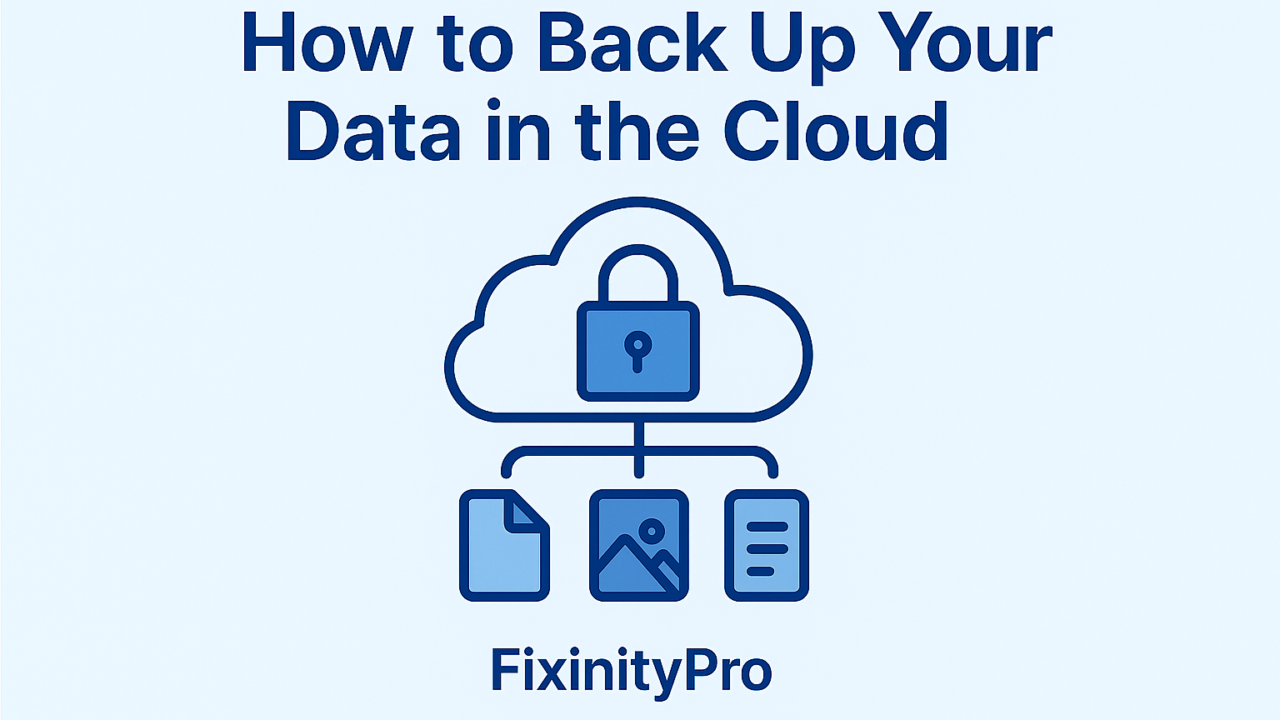
Cloud backup is the process of copying data from your computer, smartphone, or server to a remote cloud storage platform over the internet. These copies can then be restored if the original data is lost, deleted, or compromised.
Unlike local backups (USB drives or external hard drives), online backup solutions store data in off‑site data centers maintained by cloud providers, offering greater protection against theft, hardware failure, or physical damage.
How Cloud Backup Works
- Files are selected for backup
- Data is encrypted and transmitted securely
- Files are stored on remote cloud servers
- Users can restore data from anywhere with internet access
Why Cloud Backup Matters
Protection Against Data Loss
Data loss can occur due to:
- Accidental file deletion
- Hardware or disk failure
- Device theft or loss
- Natural disasters
- Malware or ransomware attacks
Cloud backup ensures your data remains safe even if your primary device fails.
Accessibility and Flexibility
Cloud storage allows you to:
- Access files from multiple devices
- Restore backups remotely
- Collaborate securely across teams
- Scale storage needs easily
Business Continuity
For businesses, cloud backup supports:
- Disaster recovery planning
- Regulatory compliance
- Minimal downtime
- Data availability across locations
Popular Cloud Storage Services
Overview of Leading Providers
Several reputable providers offer reliable cloud storage and backup solutions. Each has different strengths depending on use case.
Comparison Table: Cloud Storage Providers
| Provider | Free Storage | Key Strengths | Best For |
|---|---|---|---|
| Google Drive | 15 GB | Easy sharing, Google integration | Personal & business users |
| OneDrive | 5 GB | Windows & Microsoft 365 integration | Corporate environments |
| Dropbox | 2 GB | Simple interface, file syncing | Collaboration |
| iCloud | 5 GB | Apple ecosystem integration | Apple users |
How to Back Up Your Data to the Cloud
Step‑by‑Step: Cloud Backup for Beginners
Step 1: Choose a Cloud Storage Service
Select a provider based on your ecosystem, storage needs, and security requirements.
Step 2: Create a Secure Account
- Use a strong, unique password
- Enable multi‑factor authentication (MFA)
Step 3: Select Files for Backup
Back up:
- Important documents
- Photos and videos
- Financial records
- Work files
- Email exports (for businesses)
Step 4: Upload or Sync Files
Most cloud platforms offer:
- Manual uploads
- Folder synchronization
- Automatic background backups
Step 5: Verify Backup Completion
Check that files are accessible and restorable.
Automatic vs Manual Backups
Automatic Cloud Backup
✅ Runs continuously in the background
✅ Reduces human error
✅ Ideal for regular protection
Example: Syncing your Documents folder automatically to OneDrive.
Manual Cloud Backup
✅ Full control over what gets backed up
✅ Useful for occasional archiving
Risk: Easy to forget, leading to outdated backups.
✅ Best approach: Combine automatic backups with occasional manual checks.
Cloud Backup Security Best Practices
Encrypt Your Data
Most providers encrypt data in transit and at rest. For sensitive files, consider client-side encryption before uploading.
Use Strong Authentication
- Enable MFA
- Use password managers
- Avoid reusing passwords
Protect Against Ransomware
Look for providers offering:
- Version history
- File recovery
- Immutable backups
Manage Permissions
- Limit sharing access
- Remove old collaborators
- Use role-based access for businesses
Common Risks and Threats
Accidental Deletion
Synced cloud storage may delete files everywhere if removed locally.
✅ Enable file recovery and retention policies.
Ransomware Attacks
Ransomware can encrypt synchronized files.
✅ Use versioning and offline backups.
Weak Passwords
Weak credentials expose cloud accounts.
✅ Use long, complex passwords with MFA.
Syncing Mistakes
Incorrect sync settings can overwrite files.
✅ Review sync folders carefully.
Common Mistakes to Avoid
- Assuming syncing equals backup
- Relying on one backup source only
- Ignoring backup restoration tests
- Failing to encrypt sensitive data
- Not training employees on backup policies
Best Cloud Backup Solutions for Individuals and Businesses
For Individuals
✅ Google Drive or iCloud for personal media
✅ Enable photo auto‑backup
✅ Periodically review storage usage
For Businesses
✅ OneDrive with Microsoft 365
✅ Centralized backup policies
✅ Separate backup from production systems
✅ Consider dedicated backup solutions in addition to storage providers
Conclusion
Cloud backup is no longer optional—it is a critical part of modern digital life. Whether you are protecting personal documents or business‑critical data, secure cloud storage and backup solutions provide safety, accessibility, and peace of mind.
At FixinityPro, we encourage everyone to take proactive steps to protect their data. A well‑planned cloud backup strategy reduces risk, improves resilience, and ensures that no single mistake results in permanent data loss.
Protect your data today—because data loss is not a matter of “if,” but “when.”
Frequently Asked Questions (FAQ)
Is cloud backup safe?
Yes, when configured correctly with encryption and MFA.
Is syncing the same as backup?
No. Syncing mirrors changes, while backup preserves recoverable versions.
Should I use more than one backup?
Yes. Follow the 3‑2‑1 backup rule whenever possible.
Can cloud backups protect against ransomware?
Yes, especially with file versioning and immutable backups.
Is cloud backup suitable for businesses?
Absolutely. It is essential for business continuity and data protection.