
Introduction
Data loss happens more often than most people realize. A failed hard drive, accidental deletion, ransomware attack, device theft, or even a spilled cup of coffee can instantly destroy important files. Whether you are a home user protecting family photos or a business owner safeguarding critical documents, having a reliable backup strategy is essential.
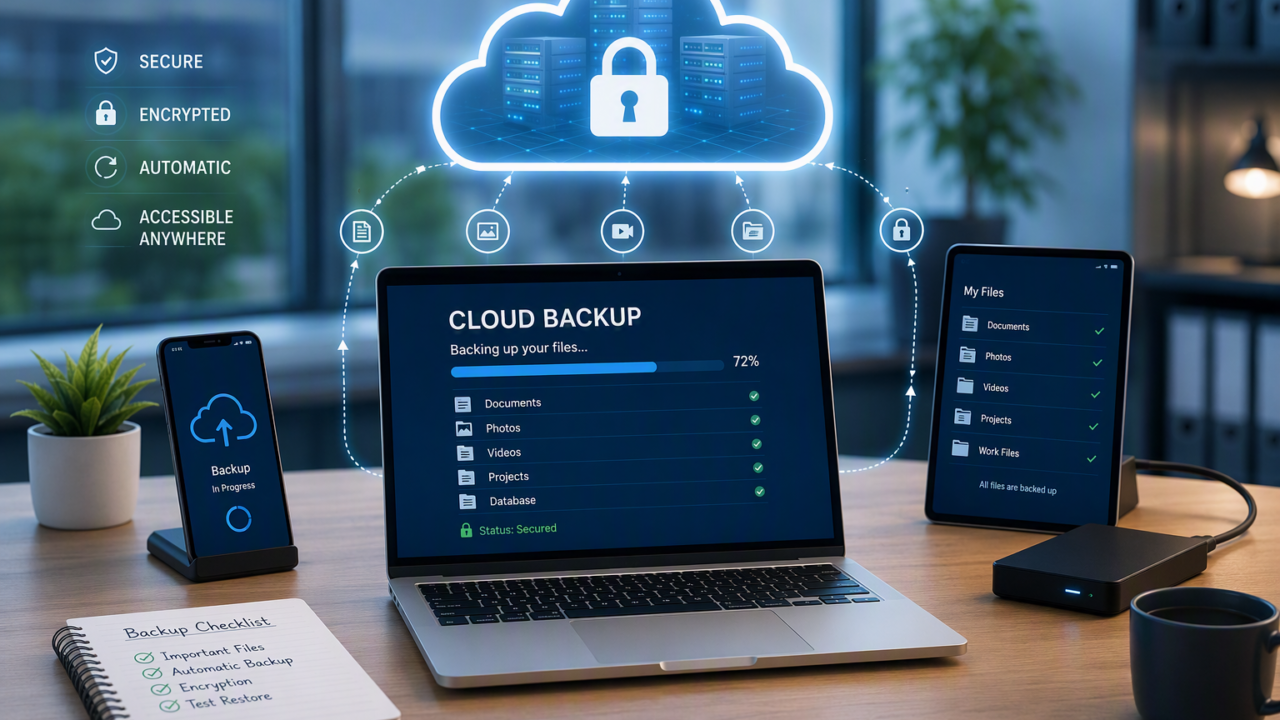
Cloud backup has become one of the most effective and accessible ways to protect digital data. Instead of relying solely on external hard drives or USB devices, cloud backup stores copies of your files in secure remote data centers accessible through the internet.
In this complete beginner’s guide, you’ll learn:
- What cloud backup is
- Why cloud backups are important
- How cloud backup differs from cloud storage
- How to set up a cloud backup solution
- Common mistakes to avoid
- Troubleshooting tips
- Industry best practices for data protection
By the end of this guide, you’ll have the knowledge needed to create a secure cloud backup strategy that protects your valuable data from unexpected loss.
What Is Cloud File Backup?
Cloud file backup is the process of creating copies of files and storing them in remote servers operated by a cloud service provider.
When files are backed up to the cloud:
- Data is copied from your device.
- The data is securely transmitted over the internet.
- The backup is stored in geographically distributed data centers.
- Files can be restored if the original data is lost, damaged, or deleted.
Unlike local backups that rely on physical devices, cloud backups provide off-site protection, making recovery possible even if your computer or office is destroyed.
Cloud Backup vs Cloud Storage
Many beginners confuse cloud backup with cloud storage services.
| Cloud Backup | Cloud Storage |
|---|---|
| Automatically protects files | Primarily used for file sharing and synchronization |
| Maintains backup versions | Keeps current version synchronized |
| Supports disaster recovery | Focuses on accessibility |
| Protects against deletion and corruption | Changes sync across devices |
Examples of cloud backup services include:
- Backblaze
- IDrive
- Acronis Cyber Protect
- Carbonite
Examples of cloud storage platforms include:
- Microsoft OneDrive
- Google Drive
- Dropbox
- Box
Some cloud storage platforms also offer backup capabilities.
Benefits of Cloud File Backup
1. Protection Against Hardware Failure
Hard drives eventually fail. Cloud backups ensure your files remain accessible even if your storage device becomes unusable.
2. Disaster Recovery
Natural disasters, fires, floods, and theft can destroy devices. Cloud backups protect data by storing copies in remote locations.
3. Automated Backups
Most modern cloud solutions automatically back up files without requiring manual intervention.
4. Remote Access
Users can restore files from virtually anywhere with internet access.
5. Version History
Many solutions retain multiple versions of files, allowing recovery from accidental changes.
6. Ransomware Protection
Cloud backups can help restore files encrypted by ransomware attacks.
7. Scalability
Storage capacity can typically be increased without purchasing new hardware.
8. Cost Efficiency
Businesses avoid large upfront investments in backup infrastructure.
Prerequisites
Before beginning your cloud backup setup, ensure you have the following:
Hardware Requirements
- Computer or laptop
- Mobile device (optional)
- Stable internet connection
Software Requirements
- Cloud backup application
- Supported operating system:
- Windows
- macOS
- Linux (where supported)
Accounts
- Active cloud backup provider account
- Email address for registration
Security Requirements
- Strong password
- Multi-factor authentication (MFA)
Recommended Knowledge
- Basic file management
- Internet connectivity
- Understanding of storage locations
Step-by-Step Guide
Step 1: Identify the Data You Need to Protect
Explanation
Start by determining what information is most important.
Common examples include:
- Documents
- Photos
- Videos
- Financial records
- Work files
- Email archives
- Application data
Best Practice
Create a folder inventory before selecting files.
Expected Result
You have a clear understanding of which files require protection.
Step 2: Choose a Cloud Backup Provider
Explanation
Select a provider that aligns with your budget, storage requirements, and security expectations.
Evaluation Criteria
- Storage capacity
- Encryption support
- Pricing
- Backup automation
- File versioning
- Recovery options
- Customer support
Popular Providers
| Provider | Suitable For |
|---|---|
| Backblaze | Personal use |
| IDrive | Individuals and SMBs |
| Acronis | Advanced protection |
| Carbonite | Simple backups |
| OneDrive Backup | Microsoft ecosystems |
Best Practice
Choose providers that support end-to-end encryption and MFA.
Expected Result
A cloud backup service is selected and ready for setup.
Step 3: Create an Account
Explanation
Register with the chosen provider.
Example Configuration
Email: user@example.com
Password: StrongUniquePassword!
MFA: Enabled
Best Practice
Use a password manager to generate and store credentials securely.
Expected Result
A secure backup account is created.
Step 4: Install the Backup Software
Explanation
Download and install the provider’s backup client.
Example Procedure
- Download installer
- Launch installation package
- Follow setup wizard
- Sign in
Best Practice
Download software only from official websites.
Expected Result
Backup software is installed successfully.
Step 5: Select Files and Folders
Explanation
Choose which files and folders should be protected.
Example
Documents/
Photos/
Projects/
Invoices/
Best Practice
Focus on critical data instead of backing up unnecessary system files.
Expected Result
Target folders are selected for backup.
Step 6: Configure Backup Settings
Explanation
Adjust backup schedules and preferences.
Recommended Settings
Backup Type: Automatic
Frequency: Continuous
Encryption: Enabled
Versioning: Enabled
Retention: 90 Days
Best Practices
- Enable encryption
- Enable version history
- Schedule regular backups
Expected Result
The backup process is configured.
Step 7: Start the Initial Backup
Explanation
Run the first backup.
Initial uploads may take hours or days depending on:
- Internet speed
- Total file size
- Provider limitations
Example
A 500 GB photo collection may require several days on a standard home internet connection.
Best Practice
Run initial backups during off-peak hours.
Expected Result
Files begin uploading securely.
Step 8: Verify Backup Completion
Explanation
After the upload finishes, verify data integrity.
Validation Checklist
- Files appear in dashboard
- Backup status is successful
- No pending errors
Best Practice
Review backup logs regularly.
Expected Result
Backup data is confirmed.
Step 9: Test Restoration
Explanation
A backup is only useful if restoration works.
Restoration Test
- Select a sample file
- Delete local copy
- Restore from cloud
- Verify file content
Best Practice
Perform recovery tests quarterly.
Expected Result
Files restore successfully.
Step 10: Monitor and Maintain Backups
Explanation
Backup is not a one-time project.
Regular maintenance helps ensure long-term reliability.
Maintenance Tasks
- Check storage use
- Review errors
- Remove unnecessary files
- Verify account security
Expected Result
Ongoing protection of critical data.
Common Mistakes
Backing Up Everything
Backing up unnecessary files increases costs and backup duration.
Solution
Focus on important data.
Ignoring Recovery Testing
Many users never test restoration until disaster strikes.
Solution
Perform regular recovery drills.
Weak Account Security
Weak passwords expose backups to attackers.
Solution
Use MFA and strong passwords.
Forgetting About Version History
Without versioning, accidental overwrites can become permanent.
Solution
Enable file version retention.
Relying on One Backup Only
A single backup is not sufficient.
Solution
Follow the 3-2-1 backup rule.
Troubleshooting
Backups Running Slowly
Possible Causes
- Slow internet connection
- Large files
- Bandwidth limits
Fix
- Schedule backups overnight
- Exclude unnecessary files
- Upgrade connectivity if needed
Backup Failed
Possible Causes
- Authentication issues
- Lack of storage capacity
- Network interruptions
Fix
- Re-authenticate account
- Increase storage quota
- Retry once connectivity stabilizes
Files Missing After Backup
Possible Causes
- Incorrect folder selection
- Filters excluding files
Fix
- Review backup configuration
- Check exclusion lists
Unable to Restore Files
Possible Causes
- Account permissions
- Corrupted backup set
Fix
- Verify permissions
- Contact vendor support
- Restore from earlier versions
Excessive Storage Costs
Possible Causes
- Duplicate files
- Long retention periods
Fix
- Remove duplicates
- Adjust retention policies
Best Practices
Follow the 3-2-1 Rule
Maintain:
- 3 copies of data
- 2 different storage types
- 1 off-site copy
Cloud backup often serves as the off-site copy.
Enable Multi-Factor Authentication
MFA significantly reduces account compromise risks.
Encrypt Sensitive Data
Use encryption both:
- In transit
- At rest
Automate Everything
Manual backups are often forgotten.
Automated backups ensure consistency.
Monitor Backup Logs
Review alerts and logs regularly for errors.
Keep Software Updated
Updated backup clients often include:
- Bug fixes
- Security improvements
- Performance enhancements
Regularly Test Recovery
Recovery testing validates business continuity plans and backup integrity.
Use Role-Based Access Controls
Organizations should restrict backup access according to job responsibilities.
Frequently Asked Questions (FAQ)
1. What is the best cloud backup service for beginners?
Backblaze, IDrive, and OneDrive Backup are excellent beginner-friendly options due to their simple setup and automation.
2. Is cloud backup secure?
Yes. Reputable providers use strong encryption, secure data centers, and multi-factor authentication.
3. How often should I back up my files?
Continuous or daily backups are recommended for most users.
4. Can cloud backups protect against ransomware?
Yes. Many providers support version history, allowing restoration of files before encryption occurred.
5. How much cloud storage do I need?
Calculate the size of your critical files and include future growth. Most users need between 100 GB and 2 TB.
6. What happens if my internet connection fails?
The backup process pauses and automatically resumes when connectivity returns.
7. Can I back up external hard drives?
Many cloud backup providers support external drives, although some plans have limitations.
8. How long does a cloud backup take?
It depends on internet speed and data volume. Initial backups generally take the longest.
9. Should I delete local copies after backing up?
No. Backups should not replace primary files. Maintain local copies whenever possible.
10. What is the difference between synchronization and backup?
Synchronization mirrors files across devices. Backup creates recoverable copies that can be restored after deletion, corruption, or loss.
Conclusion
Cloud file backup is one of the most important investments you can make in protecting your digital life. Whether you are a home user safeguarding irreplaceable photos or a business ensuring operational continuity, cloud backups provide reliable protection against hardware failures, cyberattacks, human error, and disasters.
The key to success is not simply choosing a cloud provider but implementing a complete backup strategy. Follow industry best practices such as the 3-2-1 backup rule, enable multi-factor authentication, encrypt sensitive data, automate backup schedules, and regularly test restoration procedures.
By taking these steps today, you can confidently recover your files tomorrow when the unexpected happens.